Social Media Guide
Jan 6, 2026
RTC Connecting Discord: What It Means and How to Fix It
Learn what “RTC Connecting” means on Discord, why it gets stuck, and how to fix RTC connecting issues so voice chat works properly again.
Jump To
What “RTC Connecting” Means on Discord
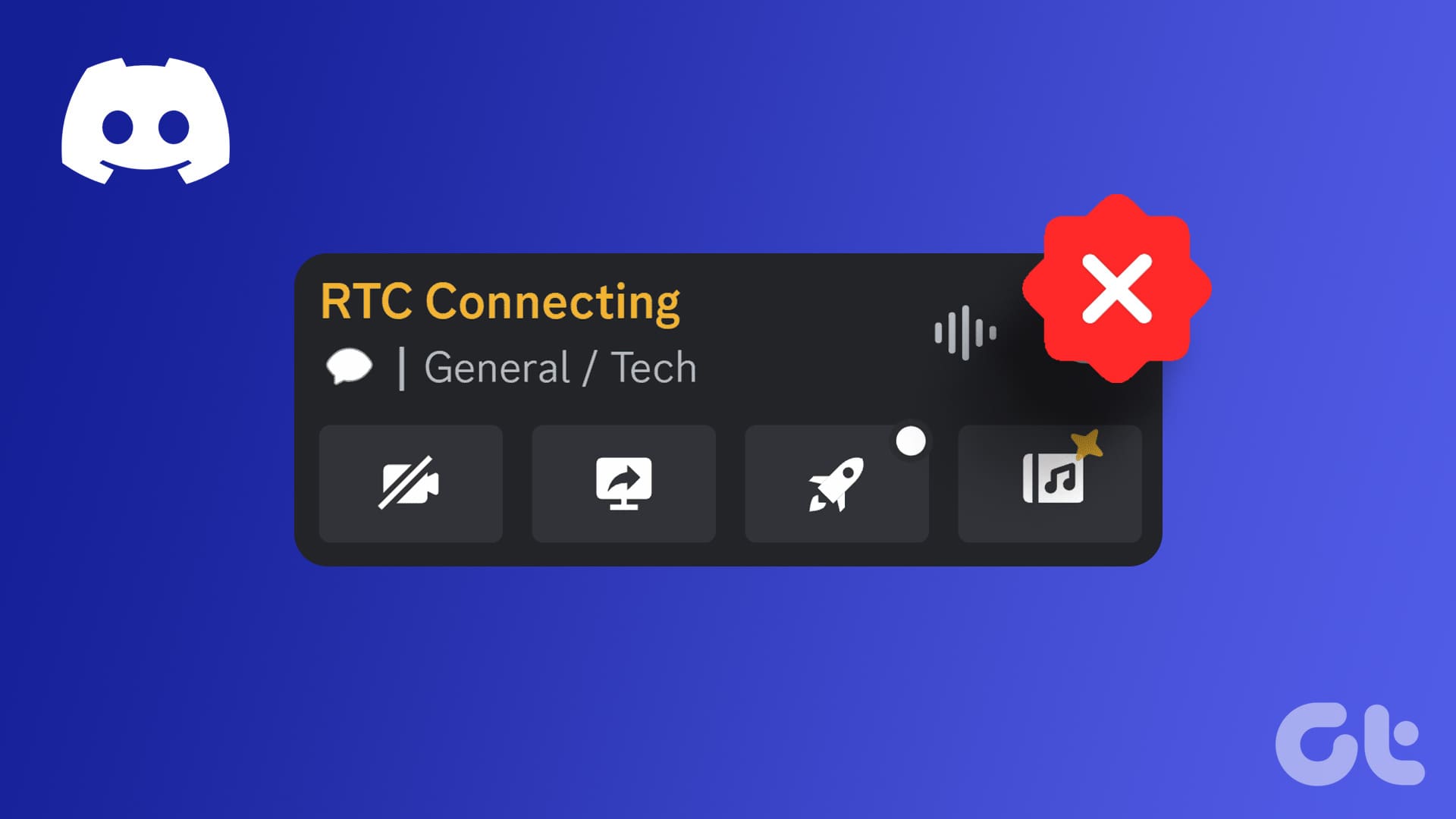
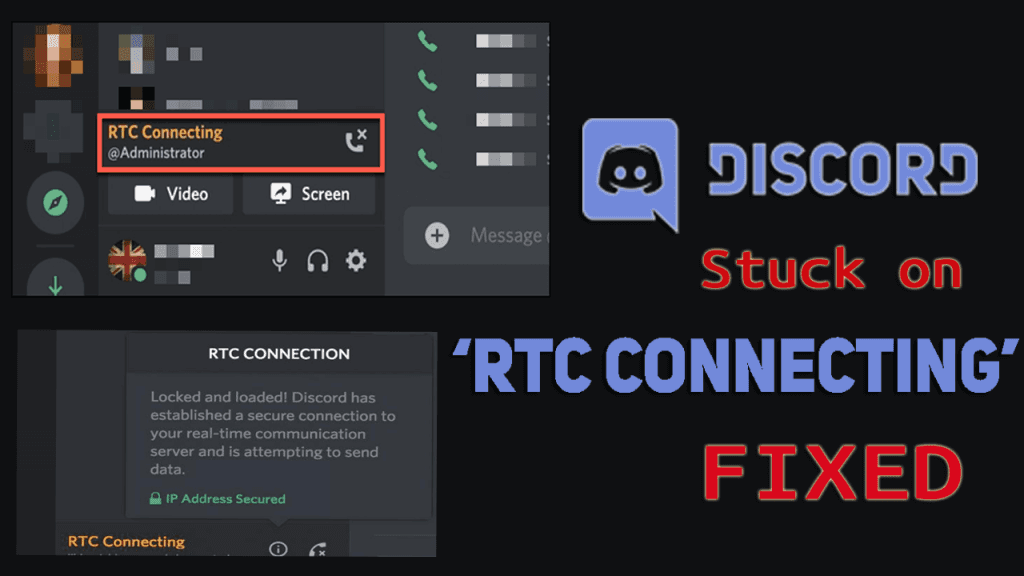
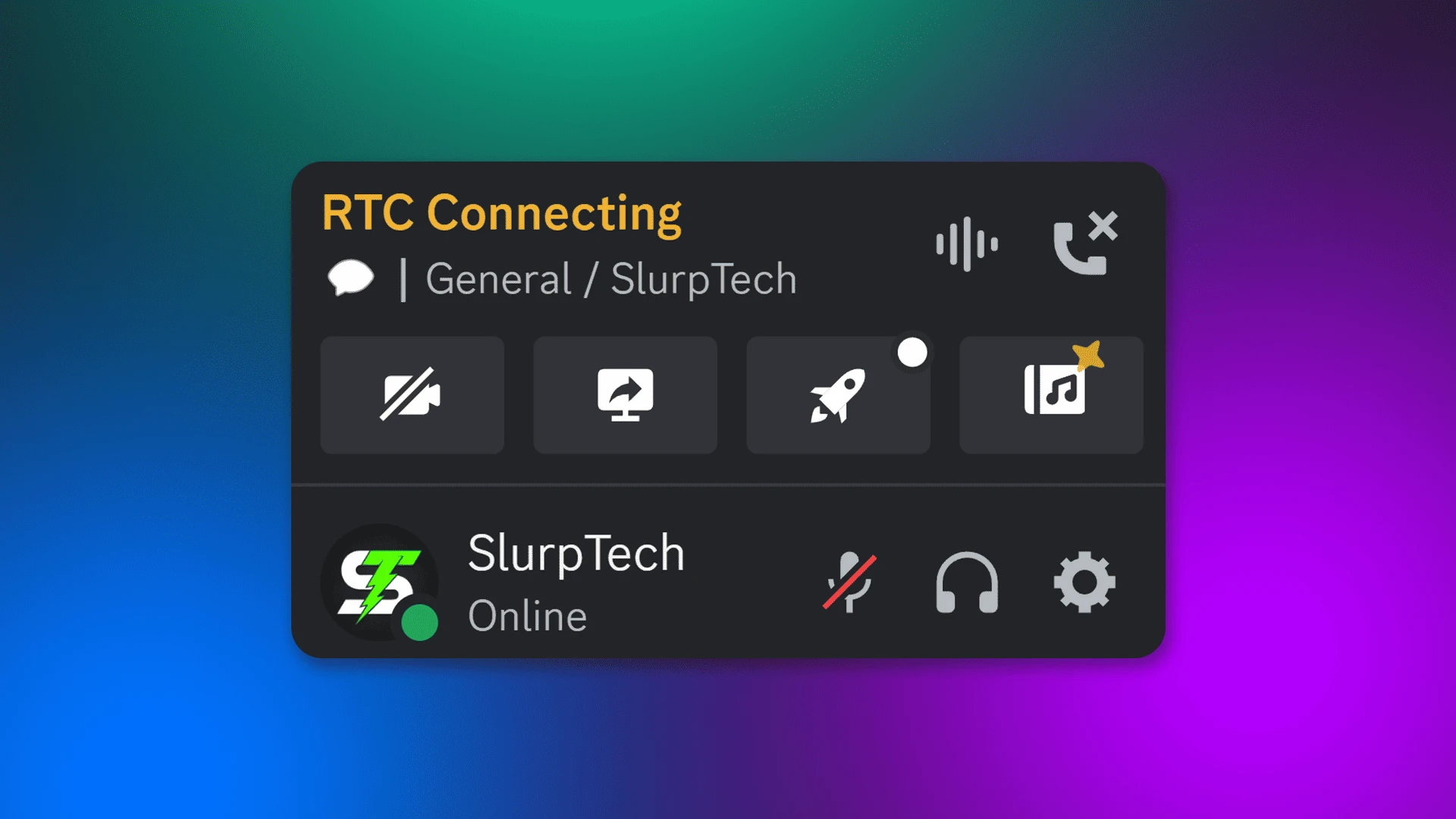
When Discord shows “RTC Connecting”, it means the app is trying to establish a real-time connection for voice communication. RTC stands for Real-Time Communication, which Discord uses to handle voice and video calls.
If everything works correctly, this message only appears briefly. When it gets stuck, Discord cannot complete the connection, and you won’t be able to hear or speak in a voice channel.
Why Discord Gets Stuck on RTC Connecting
The most common cause of RTC connecting issues is a network-related problem. Discord relies on stable UDP connections, and anything blocking or interrupting that traffic can prevent voice connections from completing.
Other common causes include:
Firewall or antivirus software blocking Discord
VPNs interfering with voice traffic
Router issues or strict NAT types
Corrupted Discord cache or outdated app versions
In most cases, the issue is local to your network or device rather than Discord itself.
Quick Fixes for RTC Connecting Issues
Before changing advanced settings, try these quick fixes:
Fully restart Discord
Restart your computer
Switch to a different voice channel
Toggle airplane mode on and off
Log out of Discord and log back in
You can also check Discord’s server status to confirm there isn’t an outage affecting voice services:
https://discordstatus.com
These steps resolve a large percentage of RTC connecting problems.
Network and Firewall Fixes
If the issue persists, your network configuration may be blocking Discord’s voice traffic.
Try the following:
Disable your VPN temporarily
Allow Discord through your firewall and antivirus
Restart your router or modem
Switch from Wi-Fi to a wired Ethernet connection
Discord officially recommends allowing UDP traffic and ensuring no ports are blocked by your network:
https://support.discord.com/hc/en-us/articles/360045138571
Advanced Fixes If Nothing Else Works
For persistent issues, deeper fixes may be required.
Changing Discord’s voice region manually can help if automatic routing fails. You can also reset Discord’s cache by reinstalling the app or clearing local files.
If you’re on a restrictive network (such as school or work Wi-Fi), switching to a different network or mobile hotspot can confirm whether the issue is network-related.
How to Prevent RTC Connecting Problems
To avoid RTC connecting issues in the future, keep Discord updated and avoid running unnecessary VPNs while using voice chat.
Using a stable internet connection, minimizing background network usage, and keeping firewall rules consistent will reduce the chances of Discord failing to connect.
If you frequently use voice chat, a wired connection and reliable router configuration make a noticeable difference.
FAQ
What does RTC connecting mean on Discord?
It means Discord is attempting to establish a real-time voice connection.
Why does Discord get stuck on RTC connecting?
Usually due to network issues, blocked UDP traffic, VPNs, or firewall restrictions.
Does reinstalling Discord fix RTC connecting?
It can, especially if corrupted files or outdated versions are causing the issue.
Is RTC connecting a Discord server problem?
Rarely. Most of the time, the issue is caused by local network or device settings.